Tools
Parts
No parts specified.
-
-
There are several ways to read this guide:
-
Reading it on the web in your browser.
-
Downloading a PDF copy of the guide. You can do this by selecting "Download PDF" as shown by the red rectangle in the first photo. Click on the Options heading in the upper right corner of the screen (see the green rectangle).
-
In the "Dozuki" application, which is available for download from the Apple App Store and various Android and Google marketplaces.
-
If you view this guide in the Dozuki app, search for "Brickstuff" the first time you open the app, then select "Product Guides" from the categories listed under Brickstuff. Scroll down to find this guide.
-
You can also translate this guide into another language when viewing on the web. To do this, install a translator extension into your browser and use that extension/plug-in to translate the page. Using the main Google translate website (translate.google.com) does not work.
-
-
-
Before setting up the remote control functionality for your kit, make sure you have successfully completed the installation of the kit's parts according to the instructions.
-
Before continuing, make sure your Brickstuff kit is powered on.
-
-
-
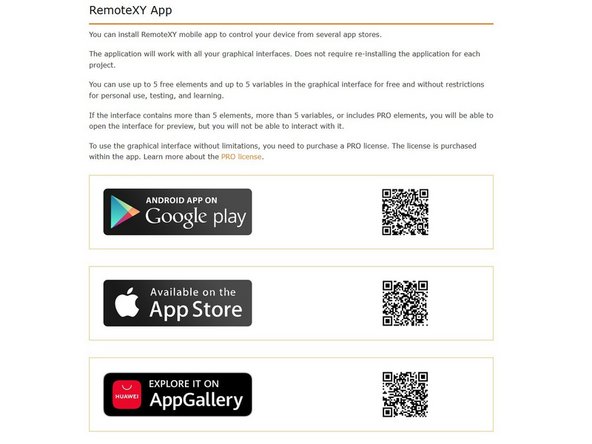
Your Brickstuff kit uses a 3rd-party app called RemoteXY to control functions and settings.
-
From your mobile device, download the RemoteXY software from either the iOS App Store or the Google Play store.
-
You may receive notifications while installing the software that you are downloading the free version but that you need to purchase the Pro version in order to access more features. You do not need to purchase the Pro version-- your Brickstuff kit includes a Pro license to use the control software.
-
-
-
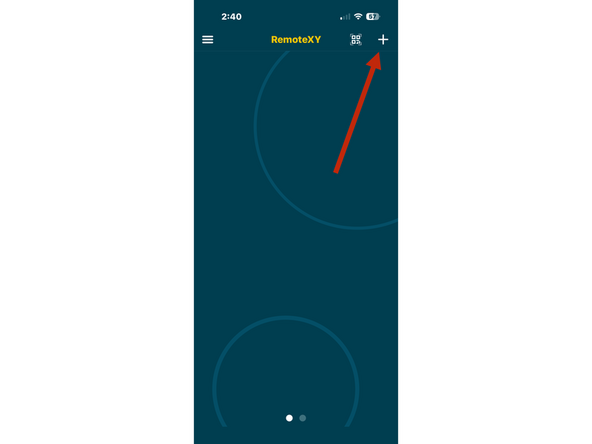
After your have successfully downloaded and installed the RemoteXY app, open it on your device. You should see a screen similar to the one shown in the screenshot for this step.
-
As shown by the red arrow in the screenshot, click the "+" icon at the top of your screen to add a new device.
-
-
-
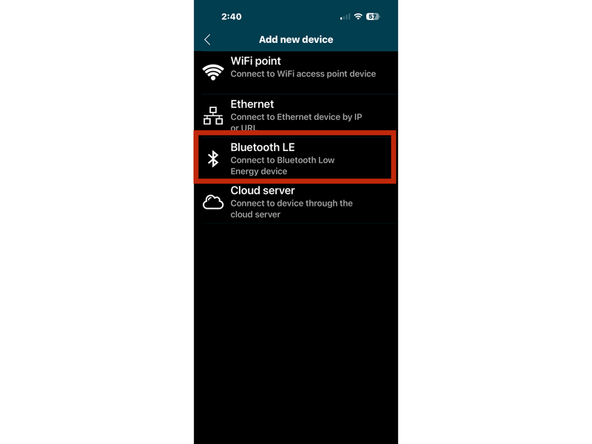
After clicking the "+" icon in your app, you should see the "Add new device" screen as shown in the screenshot for this step.
-
As shown by the red rectangle in the screenshot, you want to select "Bluetooth LE" as the device type.
-
Click on Bluetooth LE. Your mobile device should begin searching for nearby devices.
-
-
-
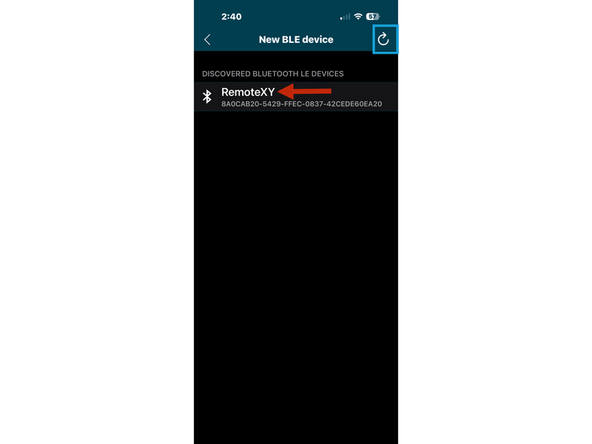
Once you've selected Bluetooth LE as the device type, you should see a list of available devices. The screenshot for this step shows a test device-- each device is indicated with a long string of numbers, and the numbers for your device will be different that what is shown in the screenshot.
-
You should see your Brickstuff kit listed as "RemoteXY". Click on that listing to move to the next step.
-
If you don't see your kit listed, make sure Bluetooth is enabled on your mobile device, and double-check to make sure the green LED power light is lit on your Brickstuff kit's main controller board. If necessary, click the "Refresh" icon at the top of the app screen as shown by the blue box.
-
-
-
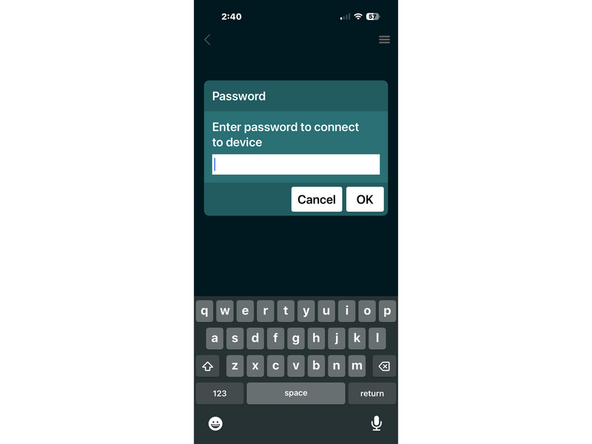
The first time you connect to your Brickstuff kit, you will be prompted for a password as shown in the screenshot for this step. Enter the password you were provided in the instructions or welcome letter for your kit to continue.
-
If you purchased the light and video kit for the Dynamic Digital Creations Viper MKII, the password is ddc. (all lower case)
-
You will only need to enter this password once. The app will automatically connect without needing to re-enter the password in the future.
-
Once you enter the correct password, you will be connected to the main controller in your Brickstuff kit and you will see the main control screen as shown in the next step.
-
-
-
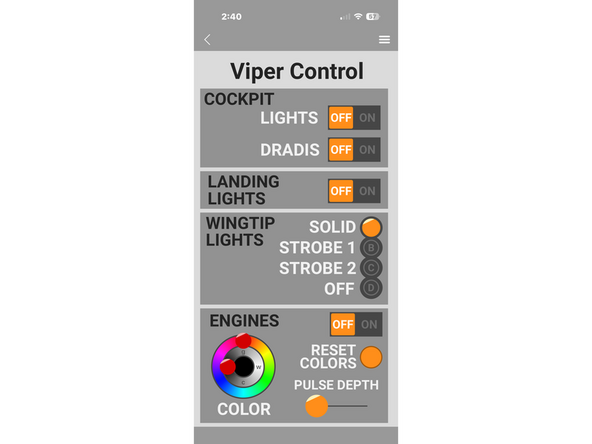
Once you've successfully connected to your Brickstuff kit's controller, you will see the main control screen.
-
The screenshot for this step shows a sample control screen-- the screen for your kit may be different, or have different controls, than the screen shown here.
-
Depending on the functions available in your kit, you will see a number of controls on the screen, each labeled and each interactive. You can change or adjust settings by clicking and/or dragging as you would with any mobile application.
-
Changes you make in the app should be reflected in real-time on your Brickstuff kit.
-
-
-
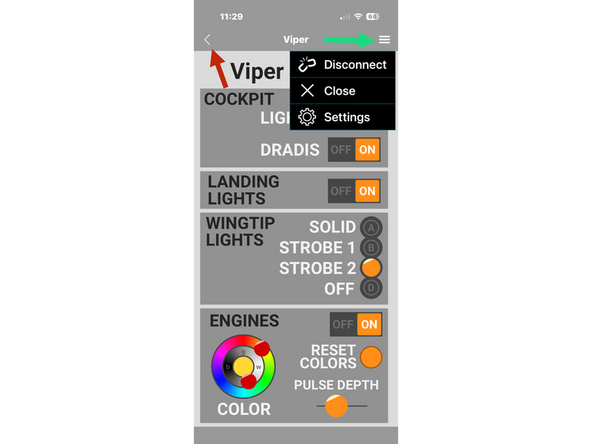
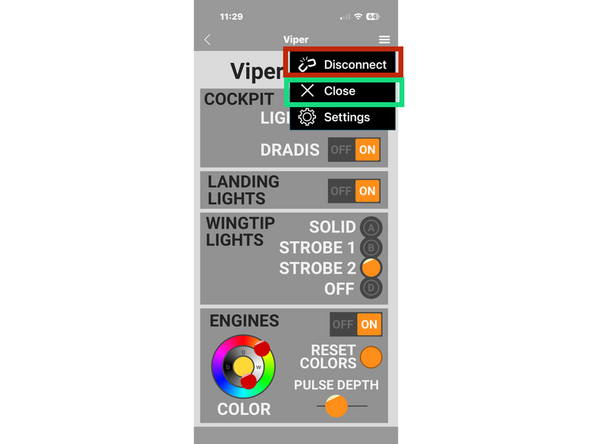
As shown in the first screenshot for this step, you can access additional functionality within the app by clicking on the back-arrow (shown by a red arrow in the screenshot) or the details icon (shown by a green arrow).
-
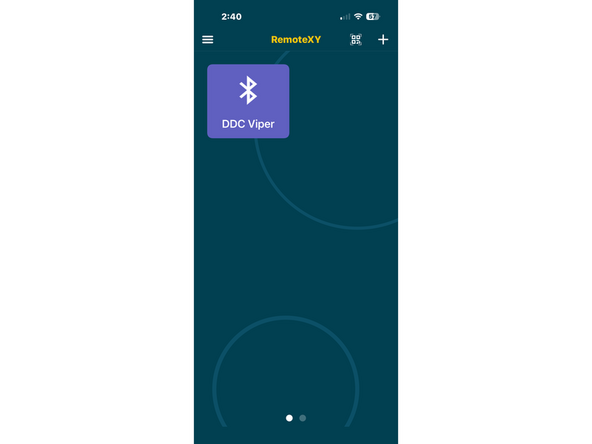
Clicking on the back-arrow will take you back to the main page of the app, where you can select from all the Brickstuff kits you have connected to in the past. This screen is shown in the second screenshot for this step, and here it has a single icon. Your screen may look different.
-
Clicking on the details icon will open a drop-down menu as shown in the first screenshot.
-
Click "Disconnect" to close the Bluetooth connection between your mobile device and the Brickstuff kit's main controller. This is recommended whenever you are done controlling your kit.
-
Click "Close" to return to the main app screen (same as the second screenshot) while still maintaining an active connection to your Brickstuff kit.
-
Click "Settings" to display the Device Settings page (see the next step for more details).
-
-
-
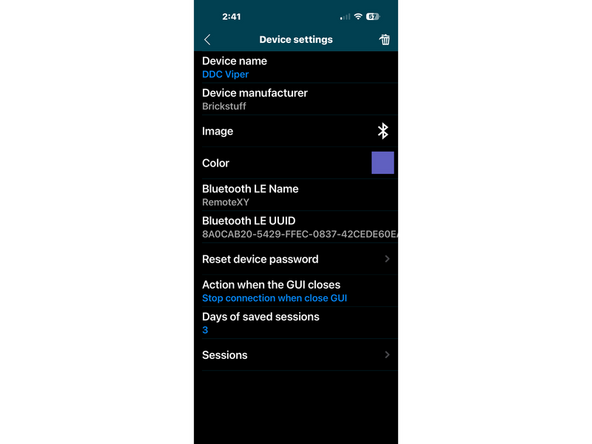
As shown in the screenshot for this step, the Device Settings page gives you several options.
-
You can rename your device if desired.
-
You can change the color of the device's icon.
-
Although you can change the device password, we do not recommend doing this as there is no way for us to recover a forgotten device password.
-
If for any reason you need to delete the device (for example, if transferring control to another mobile device or if selling your Brickstuff kit), you can click the trashcan icon at the top of the page.
-
You can click the back-arrow at the top left of the screen to return to the main device control screen.
-
-
-
When you are finished controlling your Brickstuff kit, it is recommended to select "Disconnect" from the drop-down menu as shown by the red rectangle in the first screenshot for this step. This closes all Bluetooth connections.
-
If you want to close the main control screen but maintain an active Bluetooth connection, you can select "Close" from the drop-down menu as shown by the green rectangle in the first screenshot. This can be useful, for example, when using the app to control multiple Brickstuff kits.
-
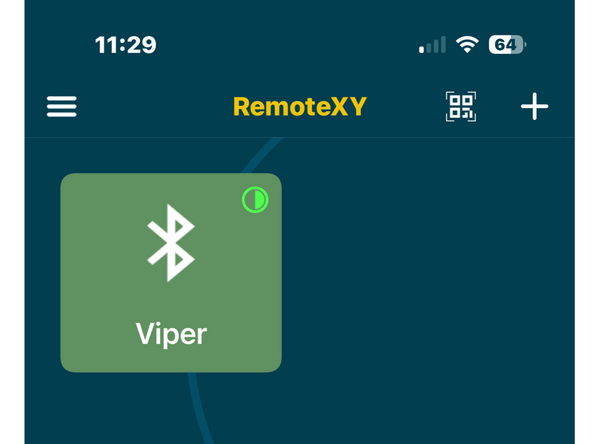
When closing the control screen but keeping the Bluetooth connection active, you will see a small green circle in the upper right corner of the device's icon on the main app screen, as shown in the second screenshot for this step.
-
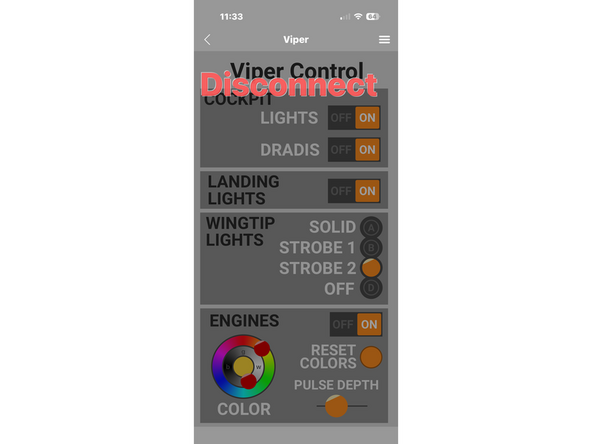
If you disconnect power from your Brickstuff kit while the Bluetooth connection is still active, eventually you will see a flashing red "Disconnect" message on the screen as shown in the third screenshot for this step. If this happens, disconnect from the kit using the "Disconnect" option in the drop-down menu.
-
We hope you enjoy using the remote control features of your Brickstuff kit!
-